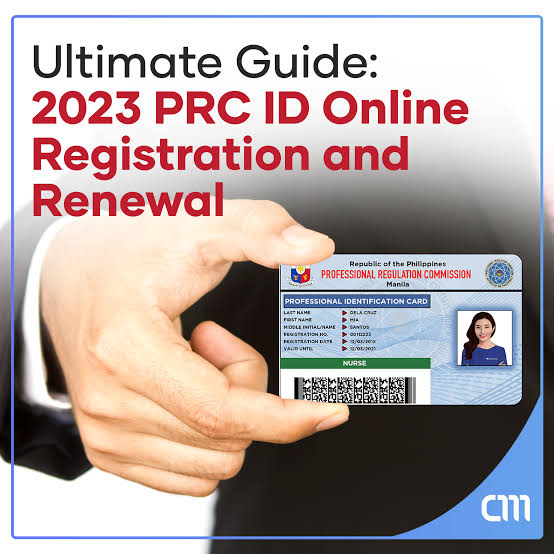











You can now book your PRC Online Appointment in just a few minutes through the official PRC LERIS portal online.prc.gov.ph. This system lets you apply for examinations, renew your PRC ID, or register your license without long queues at PRC offices. Everything can be handled digitally, fast, and securely.
The PRC’s online system helps thousands of professionals in the Philippines manage their licensing needs from home, saving both time and effort.
What is PRC Online Appointment?
PRC Online Appointment is part of the Licensure Examination and Registration Information System (LERIS), a digital platform by the Professional Regulation Commission (PRC). It enables professionals to book, manage, and track appointments for services such as board exam applications, license renewals, and registration of new passers.
Instead of lining up at PRC offices, users can set appointments online through the Globe Registration Portal, choose their preferred date and branch, and pay digitally.

PRC Online Appointment Requirements
Before booking, make sure you have the following:
- A valid government-issued ID (e.g., Passport, NBI Clearance, UMID, or Driver’s License)
- An active email address
- A LERIS account at online.prc.gov.ph
- A payment method such as GCash, Maya, or a debit card
- A recent 2×2 photo (white background, taken within 6 months)
How to Book a PRC Online Appointment (Step-by-Step)
Follow these steps to set your appointment successfully:
STEP 1
- Visit https://online.prc.gov.ph.
STEP 2
- Log in or create your LERIS account.
STEP 3
- Complete your personal information section.
STEP 4
- Click “Select Transaction” and choose the type (Exam, Renewal, or Registration).
STEP 5
- Pick your preferred PRC office and date.
STEP 6
- Review and confirm your booking details.
STEP 7
- Choose your payment method (GCash, Maya, Landbank, etc.).
STEP 8
- Once payment is confirmed, print your appointment slip.
How to Reschedule or Cancel Your PRC Appointment
If you need to make changes, here’s what to do:
- Log in to your LERIS account.
- Go to “Existing Transactions.”
- Click “Reschedule” or “Cancel.”
- Pick a new date or confirm the cancellation.
- Reprint your updated appointment slip.
Common PRC Appointment Errors & Fixes
| Error Message | Meaning | Solution |
|---|---|---|
| “No available slots” | Fully booked branch | Try another date or location |
| “Invalid photo” | Wrong image format | Upload a compliant 2×2 photo |
| “Account locked” | Too many login attempts | Wait 24 hours or reset your password |
| “Payment failed” | Timeout or system error | Retry payment or use another method |
How to Check or Verify Your PRC Appointment
- Log in to your LERIS account.
- Click on “Existing Transactions.”
- Your appointment details and schedule will appear.
- You can reprint the slip anytime from this section.
PRC Online Payment Options
| Payment Method | Available? |
|---|---|
| GCash | ✅ |
| Maya (PayMaya) | ✅ |
| Credit/Debit Card | ✅ |
| UCPB Over-the-Counter | ✅ |
| Landbank Payment Gateway | ✅ |
After completing payment, wait for the confirmation page to load and download your official receipt.
PRC Office Locations & Appointment Centers
Below are a few major PRC offices where appointments are available:
| Region | PRC Branch |
|---|---|
| NCR | PRC Morayta, Manila |
| Region IV-A | Lucena City |
| Region VII | Cebu City |
| Region XI | Davao City |
| Region XII | General Santos City |
Choose the branch nearest to you during booking for a more convenient schedule.
Tips for a Smooth PRC Appointment
- Upload a clear, recent 2×2 photo.
- Double-check all entered information before submitting.
- Bring hard copies of your requirements.
- Arrive at least 30 minutes before your scheduled time.
- Dress neatly and avoid wearing sleeveless clothing.
- Keep your payment receipt and printed slip safe.
With the PRC Online Appointment system, managing your licensing needs has never been easier. Whether you’re applying for an exam, renewing your ID, or registering as a new professional, everything can be done in just a few clicks through online.prc.gov.ph.
FAQs
Q1: Can I walk in without a PRC online appointment?
No. All PRC transactions now require an online appointment for processing.
Q2: How can I print my PRC appointment slip?
Login to your LERIS account → “Existing Transactions” → click “Print Slip.”
Q3: Can I pay later after booking my PRC appointment?
Yes, but you must pay within the deadline shown on your confirmation page.
Q4: What happens if I miss my appointment date?
You’ll need to reschedule through the LERIS portal before making any payment.
Q5: Is there a fee for rescheduling my PRC appointment?
No fee is charged as long as payment hasn’t been completed.